
Plugin directory / UI & Skins / Catppuccin-dsh-theme
Catppuccin-dsh-theme
Verified · install-tested on dsh zhijun-dai
What it does
Soothing pastel theme for DeepSeek Harness
Works — verified, early-stage project
Soothing pastel theme for DeepSeek Harness It installs cleanly and boots without issues in our testing. It's early-stage but functional.
“Verified” means our automated CI actually ran dsh plugin add in a clean profile and it booted — nothing more. Feature descriptions and version compatibility are the author’s claims. This is not a security audit and not an endorsement of third-party code.
README

 Catppuccin for DeepSeek Harness





Table of Contents
Intro
🐱 A Catppuccin theme plugin for
DeepSeek Harness — one
package that covers Web GUI (dsh web), DSH Desktop and
dsh-TUI:
- Web / Desktop: the whole UI re-skinned with the official 26-color
pastel palette — every component, not just a few accents. - dsh-TUI: four official theme palettes auto-synced to
~/.dsh-tui/themes/on install.
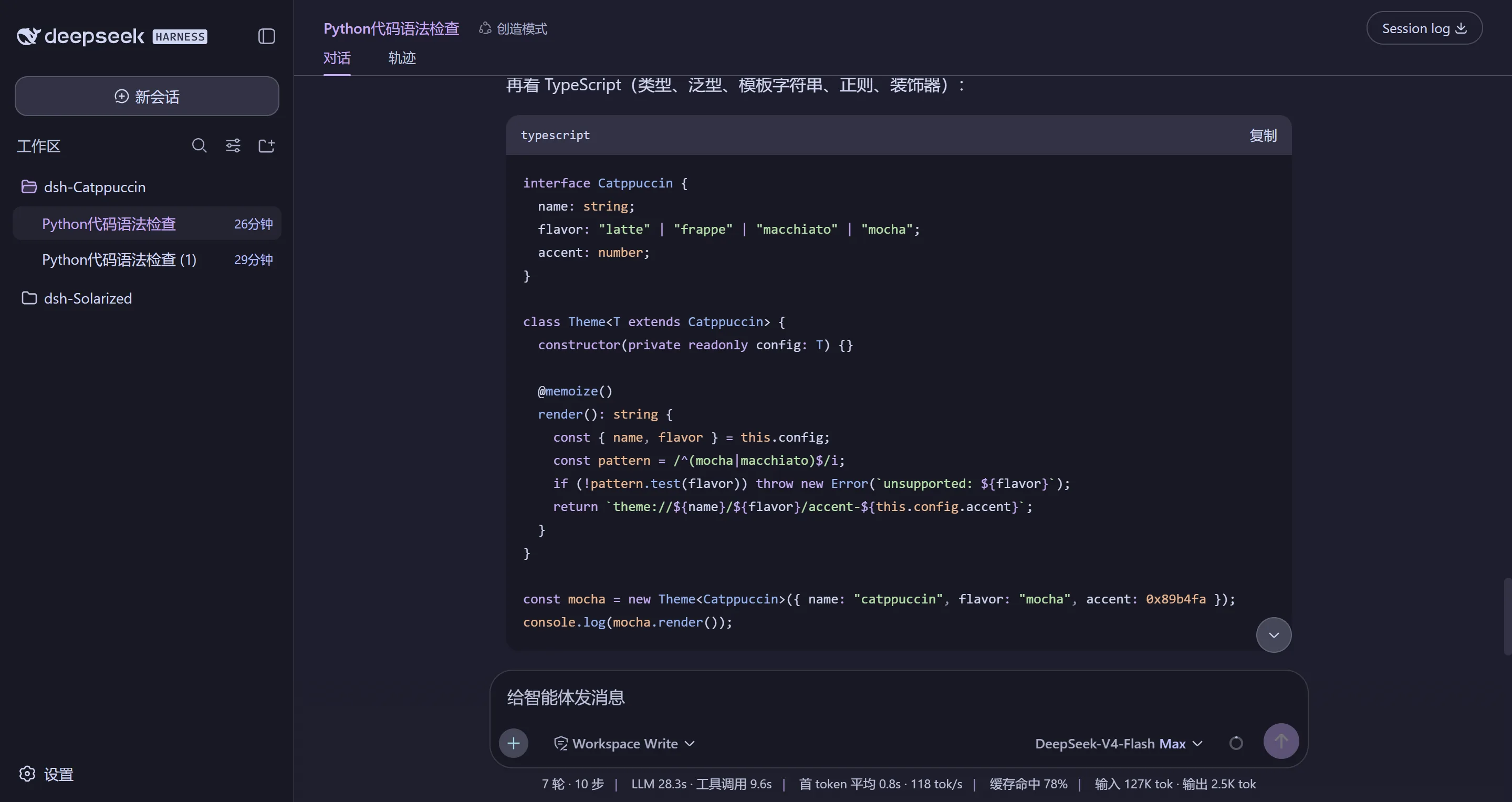
The four flavors — Latte, Frappé, Macchiato, Mocha — plug
into the built-in theme system on a level with the light/dark/system
choices, with a one-click switch row in Settings → General. Your choice
is saved automatically and restored on restart, and switching back to
Default restores the built-in appearance pixel-perfectly — no leftovers.
Features
- 🎨 Full palette coverage — every value is a Catppuccin palette color
(or a mix of palette colors); the default DeepSeek blue-gray never shows
through. - 🖱️ Component-level accents — message bubbles, tool-call rows, code
tags, timestamps and hover interactions are tinted from the palette; hover
glows in the theme accent, and the empty-workspace headline reads in
brand mauve. - 💻 dsh-TUI themes — one install command drops the four themes into
your terminal client; they auto-sync on every start. See
Install · dsh-TUI. - 🔄 Update check — Settings silently checks npm for a newer release
(with a manual button too) and shows a copyable upgrade command. - 🧠 Choice remembered — persisted across restarts and re-applied even
when the host re-asserts its own preference; turning it off restores the
built-in light/dark choice you had before, not a forced "system". - 🗄️ Durable state — flavor choice survives DSH Desktop's random
per-launch port where browser localStorage starts empty. - ⚙️ Zero intrusion — switching to Default restores the built-in
appearance pixel-identical; uninstall leaves nothing behind.
Previews
The four flavors in DeepSeek Harness (headline image above is the
catwalk composite; each flavor below in full):
🌻 Latte
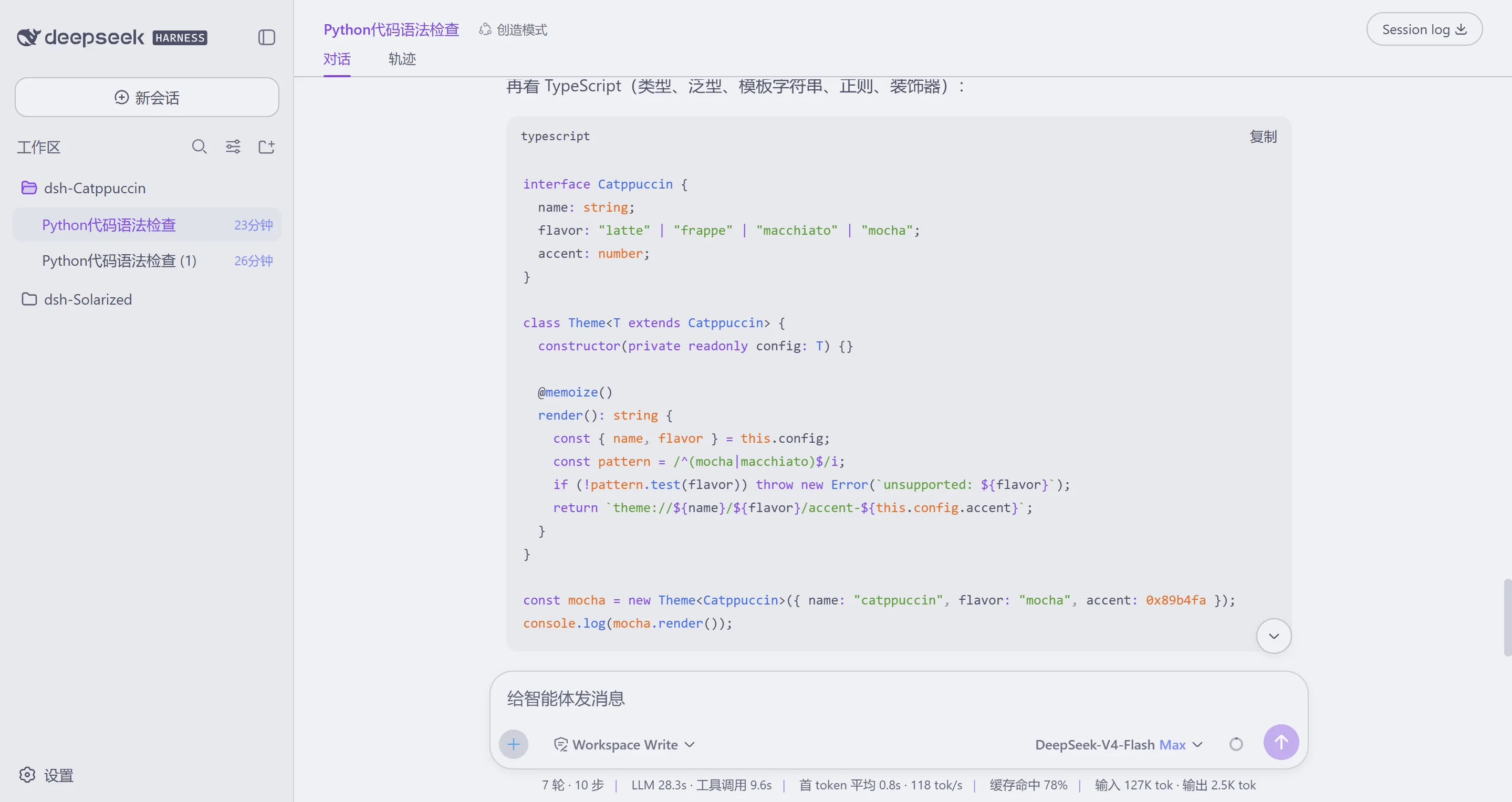
🪴 Frappé

🌺 Macchiato
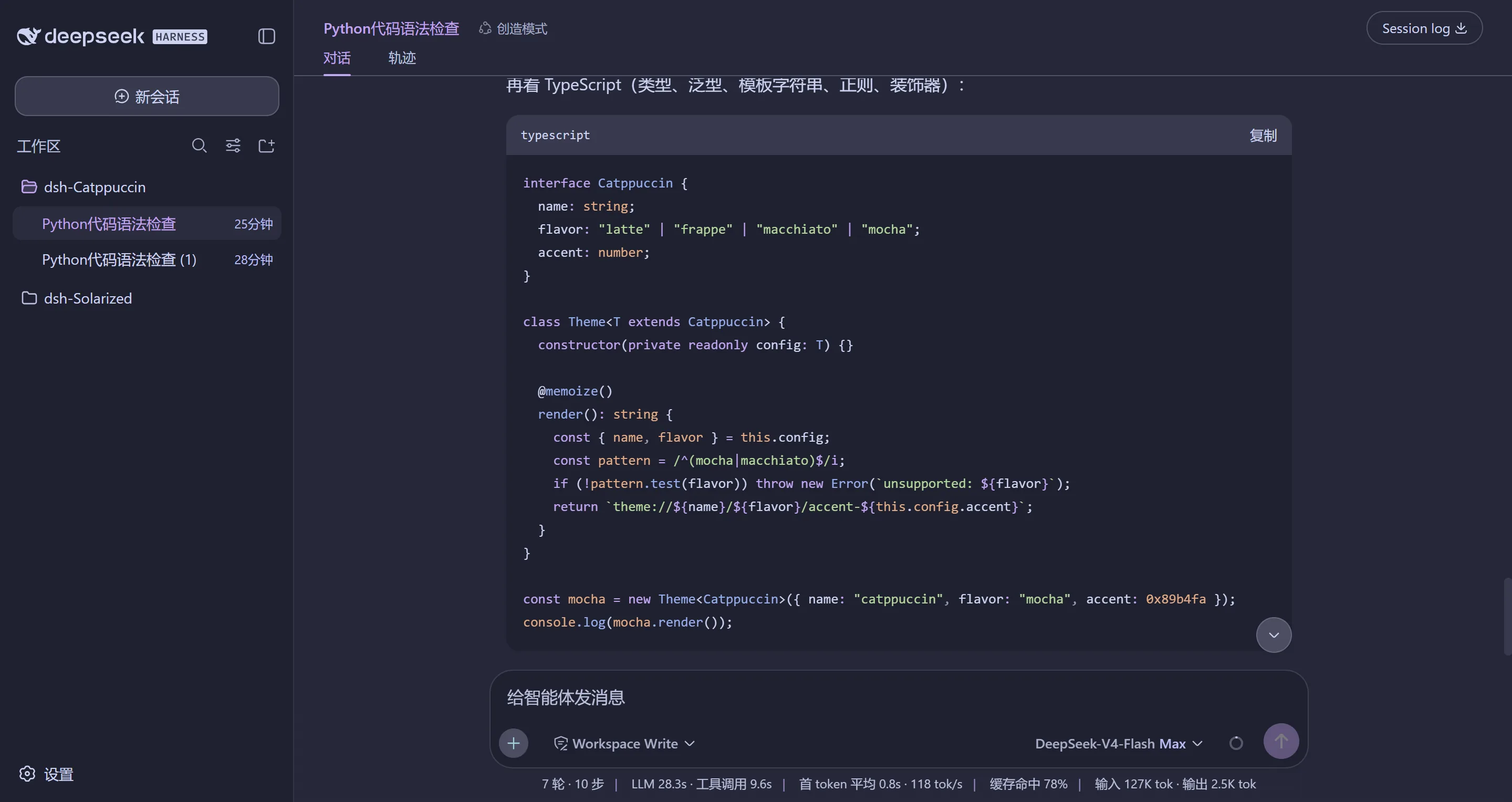
🌿 Mocha
Install
From GitHub (recommended — always the latest):
dsh plugin --profile web add github:zhijun-dai/Catppuccin-dsh-theme
From npm:
dsh plugin --profile web add dsh-catppuccin
💡 The npm release may lag slightly behind GitHub. For the very latest,
use the GitHub install above (pin a branch with#branch-name).
For DSH Desktop, target the desktop profile:
dsh plugin --profile desktop add dsh-catppuccin
dsh-TUI (terminal themes)
The same package also syncs the four Catppuccin themes into your dsh-TUI.
Install into the TUI profile and they land on the first start:
dsh plugin --profile dsh-tui add dsh-catppuccin
Then pick a theme inside the TUI: /theme catppuccin-mocha.
💡 Installed into a web/desktop profile of a user who also runs dsh-TUI,
the themes stay in sync on every web start — no second install needed.
No~/.dsh-tuion disk? Strict no-op, nothing is created.
Restart the web server afterwards:
dsh web
Usage
Open the web UI, go to Settings → General, and pick one of the four
Catppuccin flavors (or Default to follow the built-in appearance).
Choice is saved per browser and restored at boot.
FAQ
Q: I installed the plugin but don't see the themes in Settings.
Make sure the profile you installed into is the one dsh web runs
(--profile web above), and restart dsh web after installing.
Q: How is my choice remembered?
It lives in browser localStorage (instant) and, for Desktop users, in a
small durable file under $DSH_HOME — so it survives restarts, model
switches and Desktop's per-launch port changes. Your explicit
light/dark/system pick in the built-in Appearance row always wins.
Q: How do I upgrade?
Re-run the install command (it fetches the newest release), or check the
Settings row — it silently tells you when a newer version exists and shows
the copyable upgrade command. Then restart dsh web.
How it works
The theme definitions are generated from the official
catppuccin/palette palette.json
(never hand-edited). scripts/gen-themes.mjs maps the 26 Catppuccin colors
per flavor onto the --dsw-alias-* token directory from dsh's@deepseek-ai/dsh-client-ui-theme stylesheets (including the --shiki-*
syntax palette and the leaked --dsw-static-deepseek-* static colors),
writes the per-flavor token tables to themes/, and embeds them into the
browser bundle lib/client.js. The dsh-TUI themes come fromscripts/gen-tui-themes.mjs.
💝 Thanks to
- zhijun-dai
- Catppuccin
- KinGao294/dsh-skin — the reference theme plugin this port is modeled on
- DeepSeek
🏆 Listed on Awesome DSH Plugin

Copyright © 2026-present zhijun-dai

Install
Install the catalog once, then DeepSeek Harness can find and install any plugin from this site automatically:
dsh plugin add dshbase-catalogThen say "install Catppuccin-dsh-theme for me" — your agent finds it in the directory and installs it. Docs: dshbase-catalog · verified packs.
This plugin is GitHub source (not published to npm) — install it straight from the repo:
Web profile:
dsh plugin --profile web add github:zhijun-dai/Catppuccin-dsh-themeHeadless (CLI) profile:
dsh plugin --profile headless add github:zhijun-dai/Catppuccin-dsh-themeTest report
Verified: L1 install + L2 load + L3 runtime from GitHub source on dsh 0.1.0-rc.6.
When to use it
Change how dsh looks or how you interact with it — a theme, a skin, or a new panel that reshapes the workspace.
Who it's for
Users who spend hours in the web UI and want it to look and feel the way they work.
For developers — extending it
Skins, panels, and theme tokens are the extension points — author a new skin, add a panel, or sync tokens with an upstream palette.
Share this badge
Drop this badge into your README — it links back here and updates automatically when our test status changes:

[](https://dshbase.com/plugins/Catppuccin-dsh-theme/)<a href="https://dshbase.com/plugins/Catppuccin-dsh-theme/"><img src="https://dshbase.com/badges/Catppuccin-dsh-theme.svg" alt="dshbase install-tested"></a>